Risk of Rain 2 is renowned for its chaotic action and endless item synergies, but playing alongside a friend in the same room brings a whole new layer of excitement. While local split-screen is natively supported on console versions, PC players can also unlock couch co-op functionality with a quick setup process. Understanding how to configure your hardware and in-game settings ensures a smooth local multiplayer session for everyone involved.
Setting Up Local Split-Screen on Consoles
Playing Risk of Rain 2 in couch co-op mode on PlayStation, Xbox, or Nintendo Switch is straightforward and built directly into the main menus. Players simply need to connect a second controller to the system before launching the game to trigger the option. Once both profiles or guest accounts are logged in, the game configures a vertical or horizontal split-screen display automatically.
Console players should ensure that both controllers are fully charged and updated with the latest firmware to avoid unexpected disconnections mid-run. Adjusting screen safe-zone areas in the settings menu helps prevent HUD elements from cutting off on smaller television displays. This native support allows console gamers to jump straight into Petrichor V without extra technical tinkering.
Enabling Split-Screen Multiplayer on PC
PC players looking for local multiplayer can enable split-screen functionality using built-in developer console commands or community modifications. By opening the developer console using shortcut keys, users can enter specific commands to add a local player slot to the active lobby. This method binds a second connected gamepad directly to the second survivor in real time.
Alternatively, many players prefer using popular modding tools that offer a user-friendly interface for split-screen management. These utility mods handle screen division and input routing seamlessly without requiring manual console inputs before every run. Taking time to properly configure controller layouts in Steam settings guarantees that both players enjoy responsive control during intense teleporter fights.
Optimizing Hardware Performance and Visual Settings
Running two simultaneous perspectives in Risk of Rain 2 significantly increases GPU and CPU rendering demands, especially during late-game loops. To maintain a stable frame rate, lowering shadow quality, particle density, and bloom effects is highly recommended. Disabling corpse persistence also keeps screen clutter to a minimum as enemy counts scale over time.
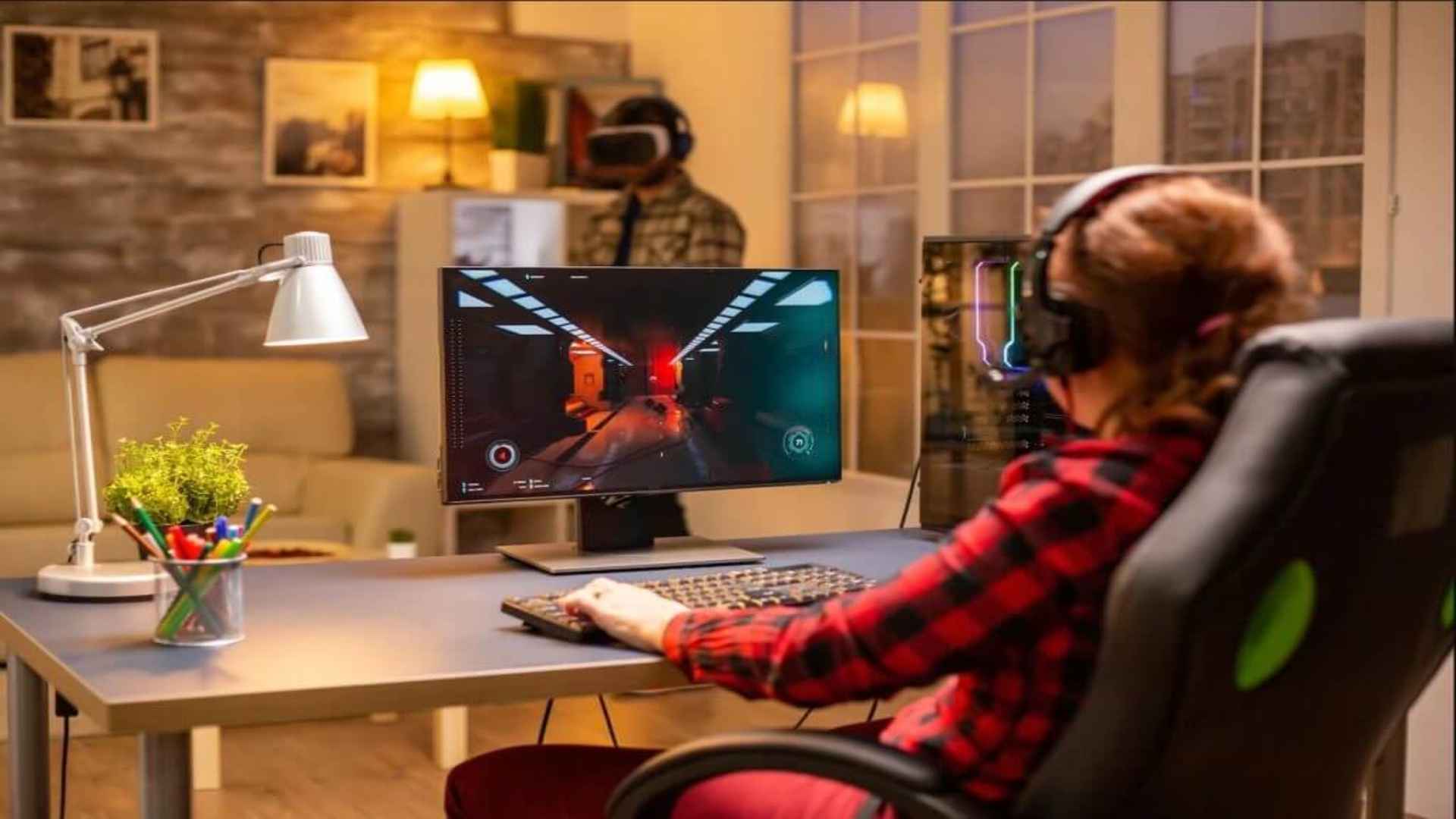
Using a large monitor or television makes split-screen gameplay far more comfortable, allowing both players to keep track of their health bars and cooldowns easily. Players can also adjust the field of view sliders individually to prevent motion sickness caused by reduced screen real estate. Proper performance optimization prevents dramatic frame drops during chaotic boss encounters.
Essential Strategies for Local Co-Op Survival
Communication is the key to surviving long runs in local multiplayer, as players share resources found across each stage. Distributing items effectively based on survivor strengths prevents one player from underperforming while the other becomes overpowered. Sharing gold and coordinating teleporter activations ensures both survivors maintain pace with the scaling difficulty timer.
Reviving fallen teammates becomes a top priority during local sessions, requiring careful planning around elite monster spawns. Choosing complementary survivors, such as pairing a high-damage ranged character with a durable melee tank, creates strong team synergy. Working together on the couch turns high-pressure situations into thrilling shared victories.